Prerequisites and Setup
Complete the following setup instructions based on your Operating system on laptop and phone.
Mobile
Android
Step 1: Enable Developer options
Depending on yout Android phone manufacturer, this steps can vary. You can refer the official guide - https://developer.android.com/studio/debug/dev-options#enable
To enable developer options, tap the "Build Number" option 7 times:
- Android 9 and higher: Settings > About Phone > Build Number
- Android 8 and Andorid 8.1.0: Settings > System > About Phone > Build Number
- Android 7 and lower: Settings > About Phone > Build Number
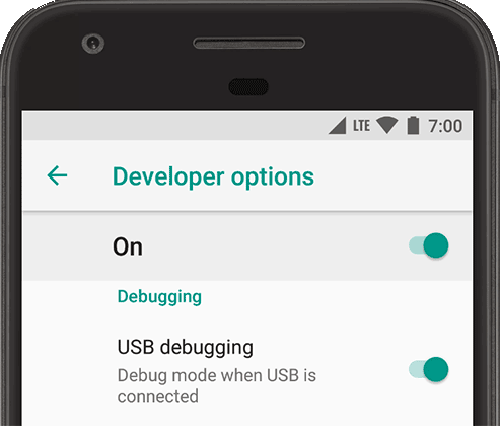
Step 2: Enable USB Debugging
Once you have enabled the "Developer options", you should enable "USB Debugging". Follow the official guide - https://developer.android.com/studio/debug/dev-options#debugging
Step 3: Install Expo Go
Install Expo Go app from Google Play store - https://play.google.com/store/apps/details?id=host.exp.exponent

iOS (iPhone)
Step 1: Install Expo Go app
Download Expo Go app from App store - https://apps.apple.com/us/app/expo-go/id982107779
Desktop
Windows
Step 1: Install Chocolatey
- Option 1 - Follow the official guide's "Install Chocolatey for Individual Use" section - https://chocolatey.org/install
- Option 2 - YouTube - How to Install Chocolatey on Windows 10
Verify your installation by running the following command in Powershell
choco
Step 2: Install required packages using Chocolatey
You need the following apps/packages. If you have it installed, you can skip the corresponding Chocolatey command:
Run the following commands in Powershell
choco install vscode --version 1.65.2 -y
choco install nodejs-lts --version 16.14.0 -y
choco install git --version 2.35.1.2 -y
choco install cygwin --version 3.3.4 -y
choco install adb --version 32.0.0 -y
npm install --global expo-cli
Step 3 - Verify all installations
Open Cygwin and run the following commands:
Checklist
-
git --version- Should give output similar to:
git version 2.32.0
- Should give output similar to:
-
node --version- Should give output:
v16.14.0
- Should give output:
-
adb --version- Should give following out:
Android Debug Bridge version 1.0.41
Version 31.0.3-7562133
Installed as
- Should give following out:
Step 4 - Connect Android Debug Bridge (ADB) connection
Connect your Android phone to your laptop/PC via USB cable. Run the following command in Cygwin:
adb devices
It should detect your device, and output something similar to this:
List of devices attached
81459a030404    device  ----> YOUR PHONE'S SERIAL
Ubuntu
Step 1: Install adb & git
sudo apt install android-tools-adb android-tools-fastboot git
Step 2: Install nvm (Node Version Manager)
curl -o- https://raw.githubusercontent.com/nvm-sh/nvm/v0.39.1/install.sh | bash
echo 'export NVM_DIR="$([ -z "${XDG_CONFIG_HOME-}" ] && printf %s "${HOME}/.nvm" || printf %s "${XDG_CONFIG_HOME}/nvm")"' >> ~/.bashrc
echo '[ -s "$NVM_DIR/nvm.sh" ] && \. "$NVM_DIR/nvm.sh" # This loads nvm' >> ~/.bashrc
source ~/.bashrc
Step 3: Install node 16
nvm install 16
nvm use 16
Verify node 16 is used through:
node --version
Step 4: Install yarn
npm install --global yarn
Step 5: Install expo
yarn global add expo-cli
macOS
Step 1: Install Homebrew
Open Terminal and run the following command:
/bin/bash -c "$(curl -fsSL https://raw.githubusercontent.com/Homebrew/install/HEAD/install.sh)"
Step 2: Install Git
You should have Git installed by default in Mac. Verify by running git --version in Terminal. If not, install Git:
brew install git
Step 3: Install required Packages
Run the following commands:
brew install node@16 yarn watchman
brew install --cask android-platform-tools
yarn global add expo-cli
Step 4: Install VSCode
Download and install VSCode - https://code.visualstudio.com/download
Step 5: Verify installations
The following commands should give appropriate outputs:
node --version
npm --version
adb --version
yarn --version
watchman --version
expo --version